Which PHP Version Should Your WordPress Run?
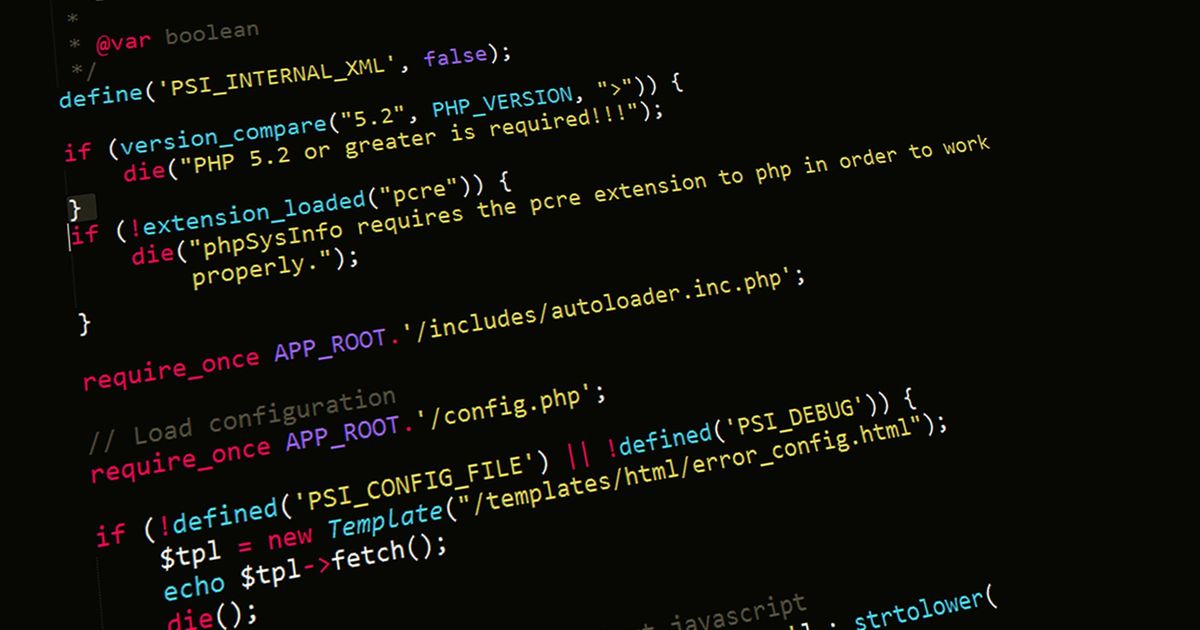
WordPress is written in PHP. Every page that isn’t served from cache runs through PHP, so the version your site uses affects both how fast it is and whether it still gets security fixes. It’s also one of the settings people most often forget exists — the site was set up years ago on whatever was current then, and nobody has touched it since.
Why the version matters
Security. Each PHP version gets about two years of active support and then two more of security-only fixes. After that it’s end-of-life: newly discovered vulnerabilities in PHP itself are never patched for that version.
Speed. Each major PHP 8 release has brought performance improvements over the last. A site on PHP 7.4 that moves to a current 8.x version often sees noticeably faster uncached responses — admin pages, checkout, search — with no other changes.
Compatibility. New versions of plugins and themes gradually drop support for old PHP. Stay on an old version long enough and updates stop installing, which brings you back to the security problem.
Where things stand in late 2026
- PHP 7.4 and 8.0 — end-of-life for years. If you’re on either, upgrade.
- PHP 8.1 — reached end-of-life at the end of 2025. No more security fixes.
- PHP 8.2 — security fixes only, ending December 31, 2026. Plan to move off it soon.
- PHP 8.3 and 8.4 — the safe, well-supported choices for most WordPress sites today.
- PHP 8.5 — the newest release. Fine if your plugins explicitly support it; otherwise give the ecosystem a little more time.
WordPress core itself handles current PHP versions well. The real limit is almost always your plugins and theme, especially old or abandoned ones.
How to check your version
The quickest ways:
- In WordPress: go to Tools → Site Health → Info → Server. The PHP version is listed there. Site Health will also warn you if it’s outdated.
- In cPanel: open MultiPHP Manager. It shows the version for each domain on the account.
How to upgrade safely
- Take a backup first. As with any change, the backup is your undo.
- Update everything else first. WordPress core, plugins and theme should all be current before you change PHP. Old plugin versions are what break on new PHP.
- Check for abandoned plugins. If a plugin hasn’t been updated in two years, it may not work on newer PHP. Find a maintained replacement now.
- Move one version at a time if you’re far behind. From 7.4, go to 8.3, test, then continue. Jumping several versions at once makes problems harder to trace.
- Test the important paths. Homepage, a post, the contact form, the admin, and checkout if you sell online.
- If something breaks, switch back. In cPanel’s MultiPHP Manager, reverting the PHP version takes seconds. Note which plugin was causing the error, then update or replace it.
The common errors after an upgrade
- “There has been a critical error on this website” — usually one plugin using a function that changed. WordPress emails the admin address with the plugin’s name.
- Deprecated warnings shown on the page — not fatal, but they mean display of errors is turned on; it should be off in production.
- A white screen — same as a critical error, with error display off. The error log will name the file.
How we handle it
On HOSTEMCLOUD, you choose the PHP version per site in cPanel’s MultiPHP Manager. PHP 8.3, 8.4 and 8.5 are available, with 8.5 as the default for new sites. If you’re unsure whether your site is ready to move up, open a ticket and we’ll look at it with you. Moving off an outdated version is one of the cheapest performance wins there is, along with what your hosting controls in Core Web Vitals.
Frequently asked questions
Will changing the PHP version delete anything?
No. It changes the software that runs your site’s code, not your files or database.
Can I just pick the newest version?
You can, if your plugins and theme support it. If you’re not sure, a well-supported version one step behind the newest is the safer choice.
How often should I check?
Once or twice a year is enough. Site Health will warn you in the meantime if your version falls out of support.
Running WordPress on an old PHP version? Get started with UNITY and we’ll help you move up safely as part of the migration.